Forecasting Setup: Fiscal Year, Categories & Quotas
Last updated: July 21, 2026
The Forecasting page lets your team set, edit, and track revenue quotas. Settings → Forecasting is where admins configure how forecasting works for the organization — the fiscal calendar, per-manager forecast cadence defaults, which CRM categories to show in the chart, and per-user quota targets. This article covers all of these.
For the user-facing Forecasting page itself, see Forecasting.
Forecasting Configuration
The top section sets the calendar everything else aligns to.
Fiscal Year Start — pick the month and day your fiscal year begins. Click the date icon to open the picker. The day matters: a fiscal year that runs February 1 → January 31 is different from January 1 → December 31.
Forecasting Period — choose Monthly, Quarterly, or Annual. Period buckets are derived from the fiscal year start (so a quarterly period starting February 1 produces Feb–Apr, May–Jul, etc.). This is the organization default cadence when no per-team override applies.
Both settings save automatically when changed.
Per-team default forecast period (manager cadence)
Below the org-wide settings, the Manager Default Forecast Period table lets you set a different default forecast cadence for each manager's team. Use this when some teams forecast monthly and others quarterly, while keeping one org default for everyone else.
Important: These settings define defaults, not hard locks. When a rep or manager opens Submit Forecast (from Deals or the Forecasts page), Airspeed pre-selects the cadence from the settings below, but they can still switch Monthly or Quarterly in the submit panel. Airspeed does not block submissions on the "wrong" cadence — managers are responsible for enforcing forecasting process in practice (for example, expecting monthly commits or only rolling up forecasts that match the period they care about).
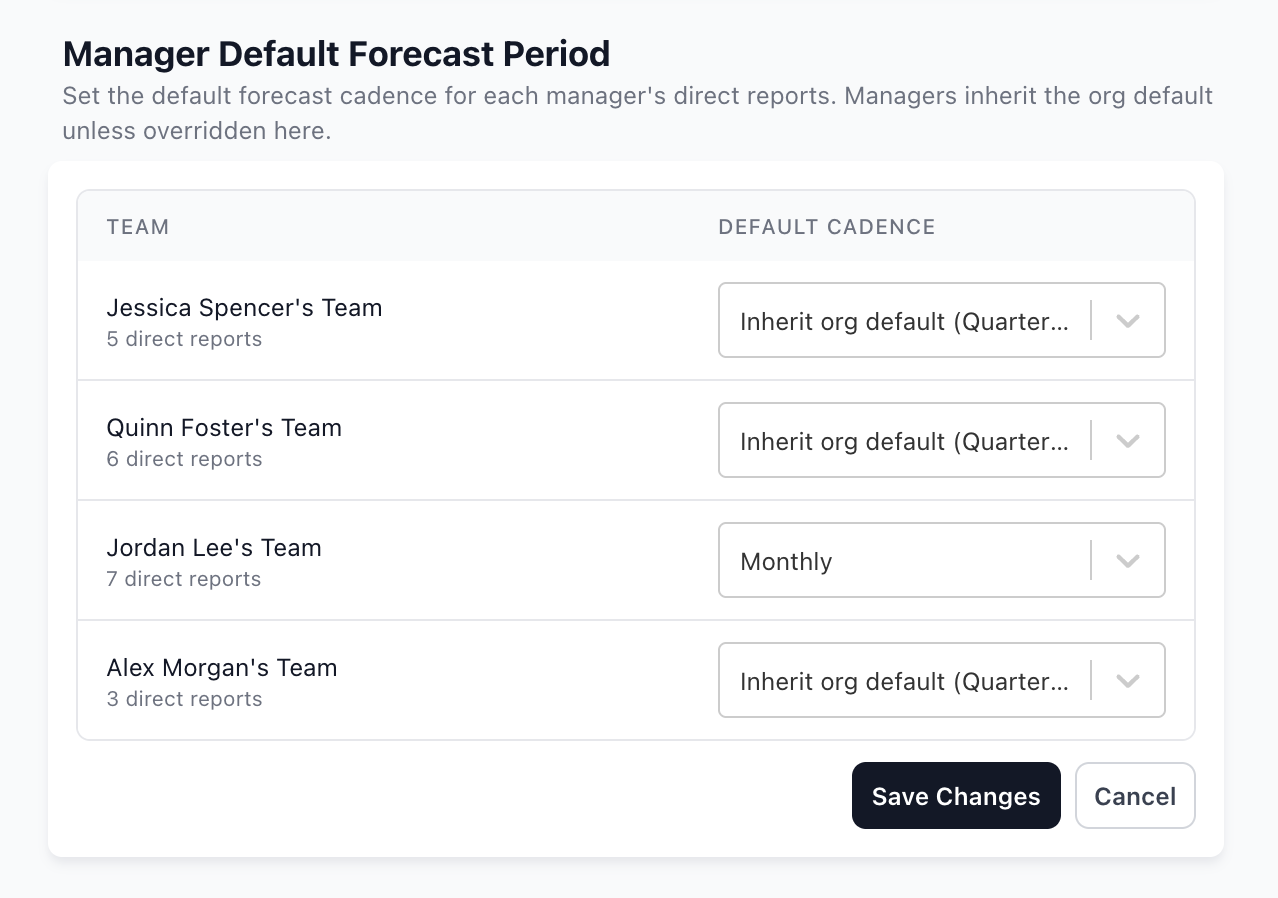
How to configure
Go to Settings → Forecasting (admin access required).
Scroll to Manager Default Forecast Period.
For each manager team, choose a Default cadence:
Inherit org default (...) — uses the organization's Forecasting Period above.
Monthly, Quarterly, or Annual — overrides the org default for that manager's team.
Click Save Changes.
How the default cadence is applied
Reps — use their direct manager's team default when that manager has chosen Monthly, Quarterly, or Annual. If the manager's row is set to inherit the org default, the rep uses the org Forecasting Period.
Managers — the value on their own row in the table is also used when they submit or roll up a team forecast and when team forecast data loads on the Forecasts page.
Note: Only the direct manager's setting applies to a rep. A skip-level leader's team default (for example, a VP set to Monthly) does not flow down to reps whose direct manager inherits the org default.
Common questions
What if different managers in the chain use different cadences?
Each rep follows their direct manager's team default (or the org default if that manager inherits it). Mixed cadences across the org are normal — a frontline manager's team can be monthly while another branch stays quarterly.
Do monthly rep forecasts roll up into a manager's quarterly team forecast?
No. Smaller cadences do not automatically fold into larger ones. Each forecast is stored for a specific period (exact start and end dates). A manager's team roll-up only includes rep forecasts submitted for the same period window as the manager's submission. Monthly submissions do not aggregate into a quarterly team forecast.
Can reps submit on a different cadence than their manager's default?
Yes. Settings only control which cadence is selected when the submit panel opens. Reps and managers can change Monthly / Quarterly in the panel before submitting. Managers enforce consistency outside Airspeed (coaching, reviews, and choosing which rep forecasts to include in a roll-up).
What period should reps submit for?
Reps should submit for the period that matches your team's process — typically the current period for their effective default cadence. The submit panel shows the date range for the selected period.
What if a rep has not submitted for the manager's period yet?
That rep's forecast will not appear in the manager's roll-up for that period. Team roll-up only includes reps who have submitted forecasts matching the manager's selected period dates.
Is this the same as quota period?
No. The Forecast Quotas section below uses its own period selector (Monthly or Quarterly) for quota targets. Quota cadence and forecast submission cadence are configured separately.
Forecast Amount Categories
This table controls which CRM forecast categories show up in the forecast chart and which ones reps can edit when submitting a forecast.
Each row corresponds to a forecast category in your CRM (HubSpot or Salesforce — Airspeed pulls them automatically). Two toggles per row:
Viewable — when off, this category is hidden from the forecast chart entirely. Use this to suppress categories your team doesn't actively use (e.g. legacy categories you've stopped maintaining).
Editable — when on, reps can edit the amount for this category when submitting a forecast. When off, the category is read-only at submission time but still shown in the chart. Editable can only be on if Viewable is on.
Click Save Changes at the bottom to apply edits, or Cancel to revert.
What if I don't see any categories?
The list comes from your CRM's forecast categories. If the table is empty, either no CRM is connected or the connected CRM doesn't expose forecast categories. Check Settings → Organizational → CRM data sync.
Forecast Quotas
Set the quota target for each user, per forecasting period.
Period dropdown — pick which forecasting period the quotas apply to (e.g. Q3 FY24). The page defaults to the period containing today's date.
Search — filter the user list by name.
Quota — type the target value into each row. The currency symbol is taken from your CRM. Modified rows are highlighted in amber until you save.
Sync from CRM
If quotas already exist in your CRM, click Sync from CRM to pull them in for the current period. Synced values populate the table and are highlighted as modified — click Save Changes to commit them.
Saving and cancelling
Save Changes — writes any edited quotas back to Airspeed for the selected period.
Cancel — reverts unsaved edits to whatever Airspeed currently has.
Permissions
Only admins can change forecasting configuration, manager team cadence defaults, the category table, and quotas. Reps see their own quotas on the Forecasting page.
FAQ
Why is the Forecasting nav item missing for some users?
Forecasting is a separate feature that's enabled per organization. If you don't see it in the left nav, contact your admin or support@glyphic.ai.
What happens to existing forecasts if I change the fiscal year start?
The period buckets shift to match the new start date. Submitted forecasts for past periods remain attached to those periods, but the labels and groupings update.
If I hide a category, do existing deals in that category disappear?
No — the deals are still in your CRM and still visible in deal pages. Hiding only suppresses the category from the forecast chart and the submission UI.
Can a user have a different quota in different periods?
Yes. Each period stores its own quota per user. Switch the period dropdown to view or edit a different period.
Can I set a different forecast cadence for one rep?
Not directly. Cadence is set per manager team in Manager Default Forecast Period. A rep uses their direct manager's team default (or the org default). To change a rep's default, update their manager's row or the org Forecasting Period.
Do monthly forecasts automatically combine into quarterly team forecasts?
No. Team roll-ups require rep forecasts with the exact same period dates as the manager submission. Plan your process accordingly if teams use different cadences.
If you have questions about Forecasting setup, reach out to support@glyphic.ai.