Using variables in Airspeed Agents
Last updated: July 11, 2026
Agent variables let you insert details from the event that triggered an agent into the prompt. They are placeholders, written with double curly braces, that Airspeed fills in when the agent previews or runs.
Use variables when the prompt needs to refer to the exact deal, call, field change, or monitored event that caused the agent to run. For example, a deal-stage agent can include {{deal_id}} so the agent knows which CRM deal to analyze, and a call-ended agent can include {{call_title}} so the output references the call that just finished.
When variables are available
Variables are most useful for triggered agents. The available variables depend on the trigger you choose in the agent builder.
Manual or scheduled agents: no trigger-specific variables are available.
Deal stage / CRM field change agents: variables describe the changed CRM field and the deal connected to the event.
Call-ended agents: variables describe the call that just ended.
Event monitor agents, if enabled for your workspace: variables describe the monitored event, source URLs, and event date.
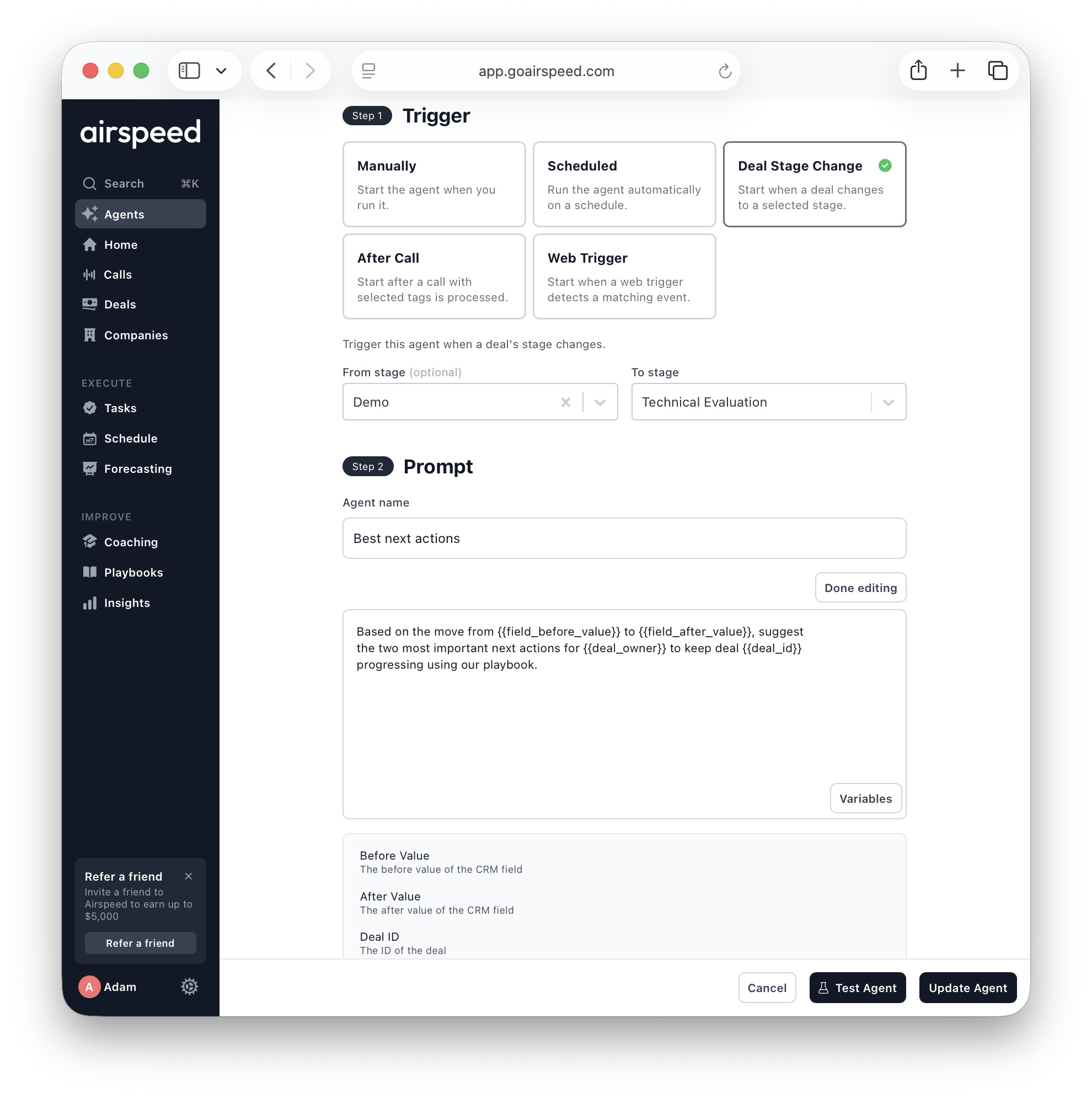
How to add a variable to an agent prompt
Go to Agents → My Agents.
Create a new agent or edit an existing one.
In Step 1: Trigger, choose the trigger for the agent.
In Step 2: Prompt, click Edit if the prompt is in preview mode.
Click Variables.
Select the variable you want to insert. Airspeed adds it to the prompt in the format
{{variable_name}}.Write the rest of the prompt around the variable, then use Test Agent to preview the result before saving.
Variable syntax
Variables use double curly braces:
{{deal_id}}You can type a variable manually, but using the Variables button is safer because it only shows variables that are available for the selected trigger.
Variable names are exact. If the spelling does not match an available variable, Airspeed will leave the text unchanged rather than filling in a value.
Available variables
Deal stage / CRM field change trigger
Variable | What it inserts |
|---|---|
| The previous value of the CRM field, if there was one. |
| The new value of the CRM field. |
| The CRM ID of the deal connected to the trigger event. |
| The owner of the deal. |
Call-ended trigger
Variable | What it inserts |
|---|---|
| The ID of the call that triggered the agent run. |
| The title of the call that triggered the agent run. |
Event monitor trigger, if enabled
Variable | What it inserts |
|---|---|
| The event summary detected by the monitor. |
| The source URLs where the event was found. |
| The date the event was detected. |
Examples
Closed-won handoff
When a deal moves from {{field_before_value}} to {{field_after_value}}, create a customer success handoff for deal {{deal_id}}. Include the deal owner, {{deal_owner}}, key pain points, promised features, stakeholders, next steps, and any risks the CS team should know about.Post-call follow-up
For the call {{call_title}}, draft a follow-up email that summarizes the prospect's priorities, open questions, objections, and agreed next steps. Include specific evidence from the conversation.Monitored event summary
Summarize this monitored event: {{monitor_output}}. Use these sources: {{monitor_source_urls}}. Explain why it matters to our sales or customer success team, and recommend who should follow up.Tips
Use variables for the trigger, not for every piece of context. Airspeed can still search calls, deals, CRM fields, and account history based on your prompt.
Keep the prompt readable. Write normal instructions around the variable so the agent knows what to do with the inserted value.
Test before saving. Use Test Agent to confirm the prompt works with the sample event data.
Do not use variables for secrets or credentials. Variables are for event context only.
Troubleshooting
I do not see any variables
Variables only appear while editing the prompt. Click Edit in Step 2, then click Variables. If the panel still says no variables were found, the selected trigger may not have trigger-specific variables.
The wrong variables are showing
Variables are filtered by trigger type. Go back to Step 1: Trigger and confirm the agent is using the trigger you expect.
A variable did not get replaced
Check that the variable name exactly matches one from the Variables menu and uses double curly braces, such as {{call_title}}. If a trigger event does not have a value for that field, the inserted value may be blank.