Zoom Cloud Recordings Integration
Last updated: May 20, 2026
Instead of using Airspeed’s native call recording functionality, you can connect your Zoom account to Airspeed. In this case, Airspeed will pull call recordings saved in Zoom Cloud Recordings as soon as they are available, and process them in Airspeed.
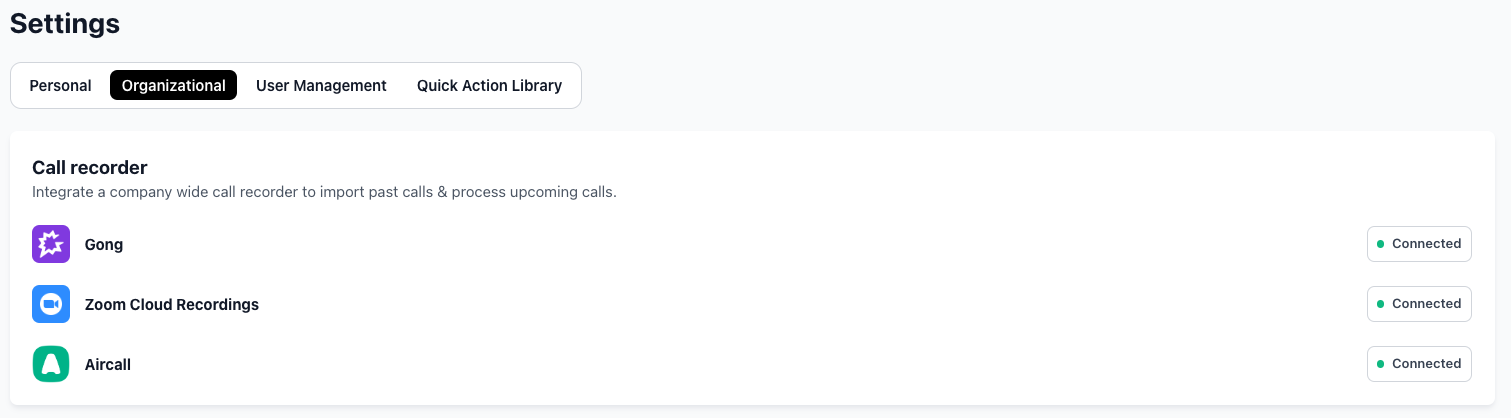
In order to enable this integration, go to Settings → Organizational → Call recorder. Click on Zoom Cloud Recordings - Connect and follow the prompts:
Zoom Settings required
We require you to enable "Create audio transcript" setting within Zoom to process your calls from Zoom cloud.
To enable, your Zoom account admin needs to:
Go to Zoom Settings
Navigate to Recording & Transcript tag
Make sure Cloud recording is enabled

Enable "Create Audio Transcript"

Save changes