Slack Integration
Last updated: July 20, 2026
Airspeed's Slack integration posts call summaries into channels you choose, lets you ask Airspeed from Slack threads, and links Deal Rooms to specific Slack channels for ongoing deal collaboration.
Asking questions about calls in Slack
Whenever a Slack message includes a link to a call in Airspeed, you can reply in the thread, mention @Airspeed, and ask anything about that call. The message can be from a colleague or one of Airspeed's automated post-call summaries.
How to set it up
Connect Airspeed to your Slack workspace. Go to Settings → Organizational in Airspeed and connect Slack.
Choose channels for call summaries. Click the ⚙ icon next to the Slack connection and add Slack call summary rules to pick what channels you want summaries posted to. Each rule can filter calls by call tag and participants.
Use
@Airspeedin replies. After each call, Airspeed posts a summary in the chosen channel. Mention@Airspeedin a reply and ask any question about that call.
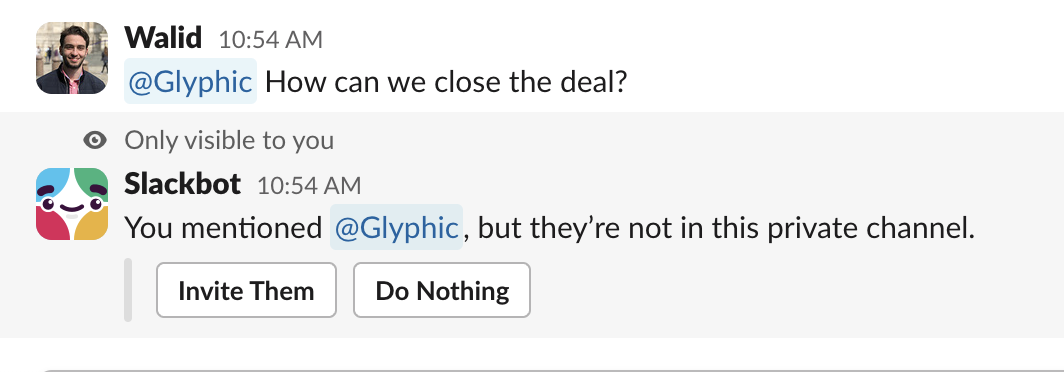
Important: invite the Airspeed app to the channel before mentioning it. Slack may prompt you the first time — click Invite Them, or open the channel name → Integrations → Add apps.
Custom Insight alerts
Each Custom Insight can post to one or more Slack channels whenever a value is captured on a call. This is the fastest way to route the things your team cares about — competitor mentions, churn signals, security questions, executive escalations — into the right channel without anyone having to look for them.
There are two notification modes per channel:
Regular notifications — Airspeed posts to the channel every time the insight returns a value. Good for low-volume insights where you want to see everything (e.g. "executive sponsor identified").
Smart (AI-filtered) notifications — you write a short prompt and Airspeed only posts when the captured value matches the prompt. Good for high-volume insights where you only want a subset (e.g. competitor mentioned and deal value is over $50k, or churn risk rated high).
A given channel can be configured as either Regular or Smart for an insight, but not both. Each Smart channel has its own filter prompt.
How to set up
Make sure an admin has connected Slack at Settings → Organizational → Messaging.
Open Settings → Insights and edit the Custom Insight you want to alert on (or create a new one).
Under Slack notifications, add one or more channels:
For a regular channel, just pick the channel.
For a smart channel, pick the channel and write a filter prompt that describes what should trigger an alert (e.g. "Notify only if the customer mentions a specific competitor by name and the call participant is from a Director-level title or above").
Invite the Airspeed Slack app to each channel so it can post.
Save.
From then on, every time that insight is captured on a call, Airspeed posts the value (with a link back to the call) to the configured channels — filtered by the smart prompt where one is set.
Deal Rooms
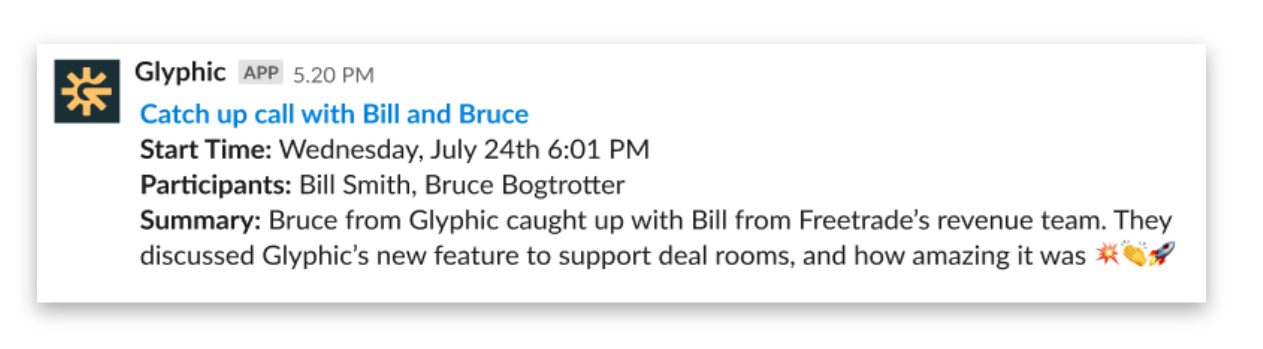
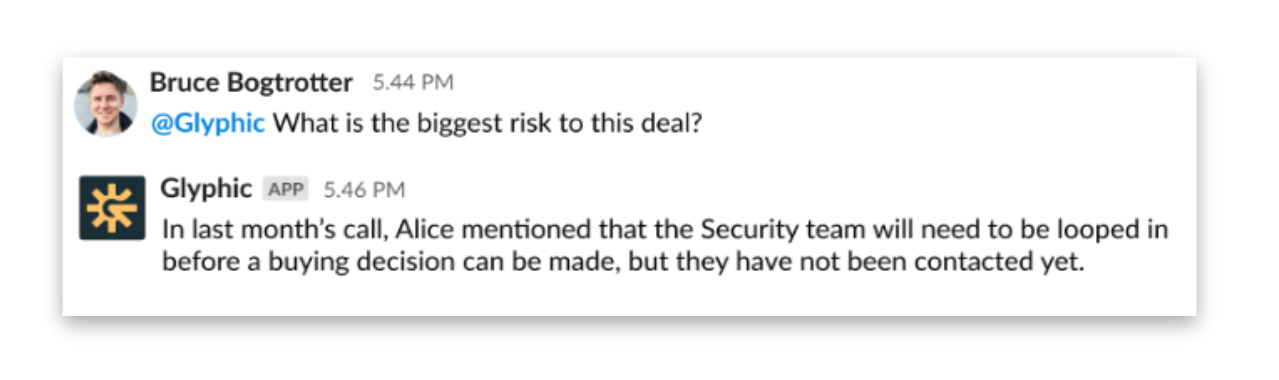
A Deal Room links a Airspeed company to a specific Slack channel. Call summaries from that company are posted to the channel automatically, and anyone in the channel can ask Airspeed about the deal directly from Slack.
What you get
Summaries of every Airspeed call with that company posted to the channel.
@Airspeedmentions answer questions across all calls and emails for that deal.
How to set up a Deal Room
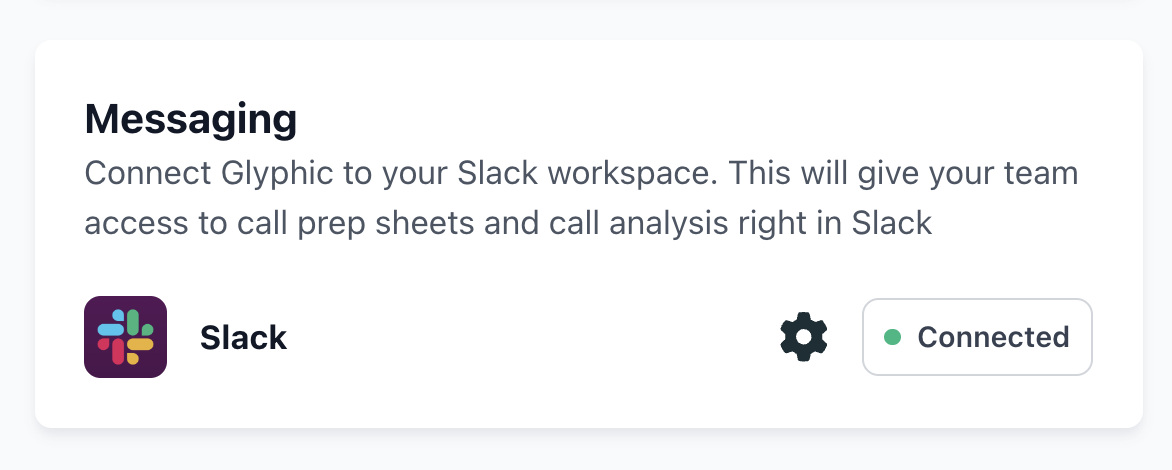
If Slack isn't connected yet, an admin must connect it first under ⚙ Settings → Organizational.
Open any Company page, click Link Deal Room, and create or link a Slack channel.
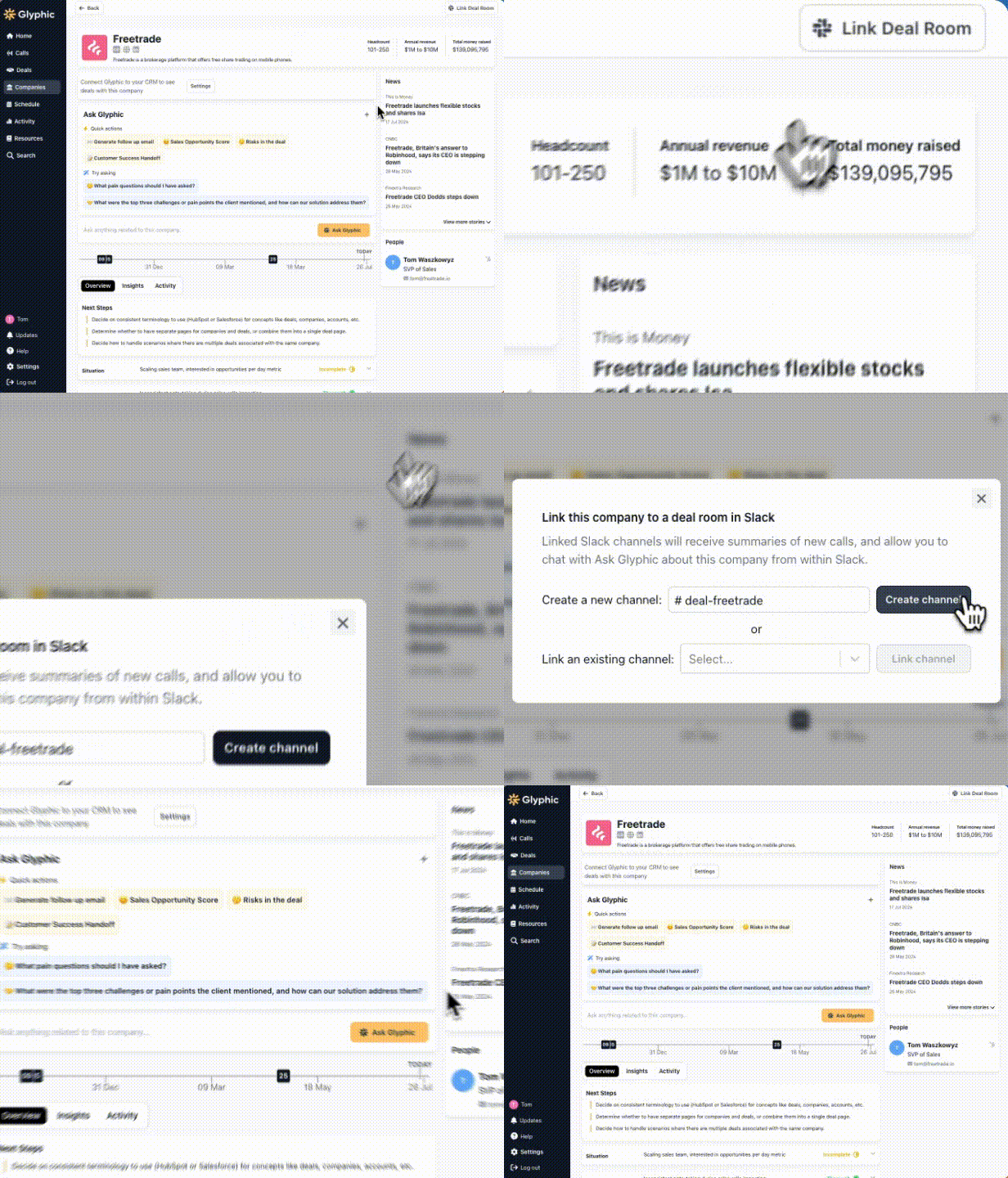
From then on, every call with that company posts a summary to the channel. Use
@Airspeedin the channel to ask about anything across the deal.
For personal Slack notifications (call summaries, prep sheets, task reminders, mentions), see Notifications.