Custom Insights
Last updated: May 20, 2026
Custom Insights are structured data points that Airspeed automatically extracts from every call — things like the prospect's tech stack, stated pain points, competitor mentions, or any other information that matters to your team. Insights are configured at the organisation level and appear on every relevant call and company page.
Where insights appear
Call page > Insights tab — shows what was captured on that specific call.
Company page > Insights tab — shows the current values across all calls for that account, giving a running picture of what Airspeed knows.
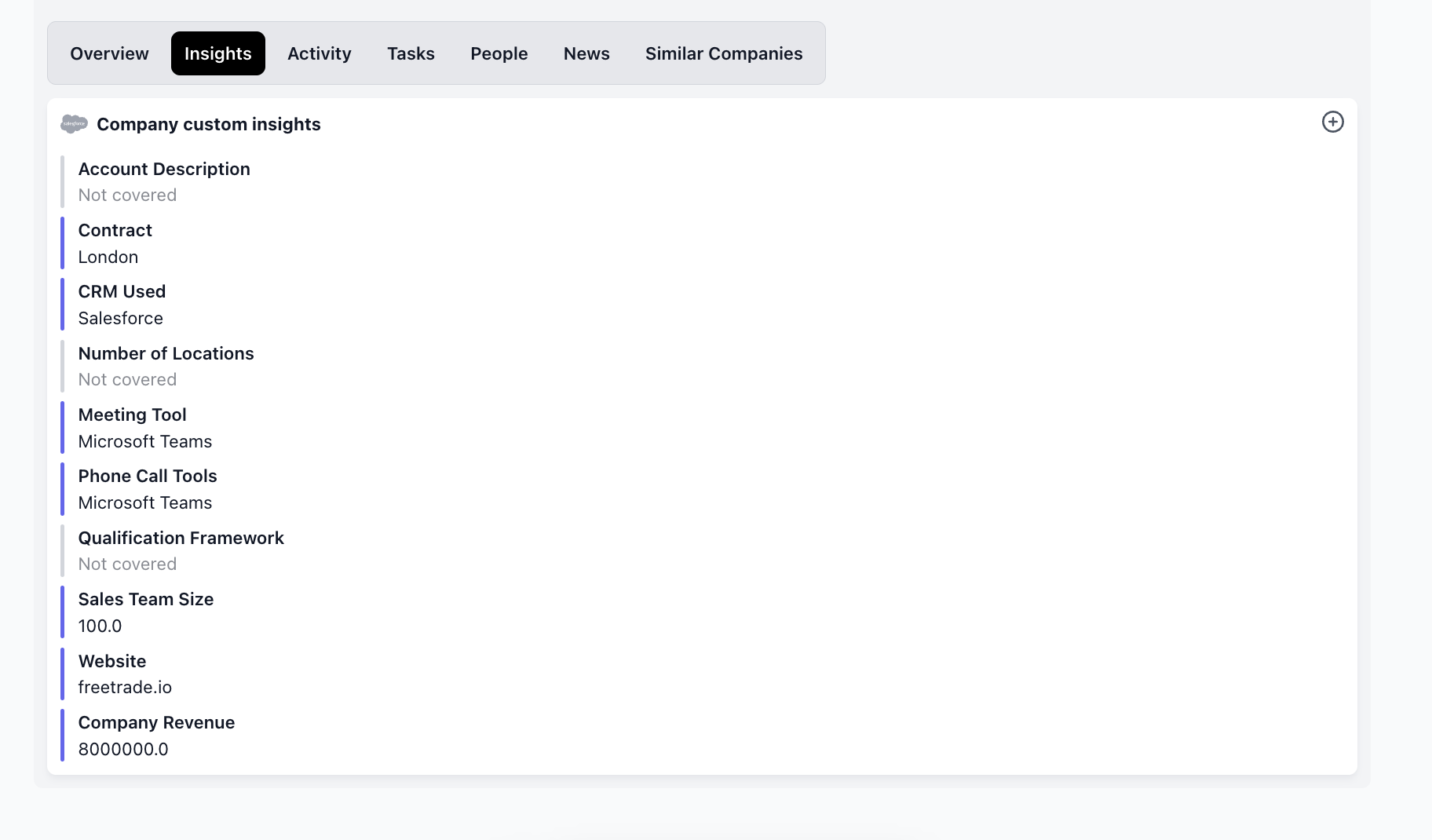
The Insights tab shows all custom data points Airspeed has captured for this account.
CRM sync
Each insight can be mapped to a field in your CRM (HubSpot or Salesforce). When a value is captured on a call, Airspeed can automatically push it to the corresponding CRM field — so your CRM stays up to date without manual data entry. The sync behaviour (overwrite, append, or manual only) is configurable per insight.
Configuring insights
Insights are set up by admins at Settings > Insights. Each insight has:
Name and display name — how it appears in the app.
Prompt — the instruction Airspeed uses to extract the value from call transcripts.
CRM field mapping — which CRM field to sync the value to (optional).
Sync behaviour — how updated values are handled in the CRM.
Filters — limit extraction to specific users, teams, or call tags.
Slack notifications — optionally post to a Slack channel when a value is captured.
Insights are configured at Settings > Insights. Each one has a prompt, optional CRM mapping, and filters.
For ideas on what to configure, see Inspiration for Custom Insights in the Best Practices collection.
If you need help setting up insights for your team, reach out to support@glyphic.ai.