The Call Page
Last updated: May 20, 2026
The Call page is where Airspeed presents everything it has analysed about a recorded call — the transcript, AI summary, tasks, insights, stats, and coaching feedback. Every call in Airspeed opens on this page.
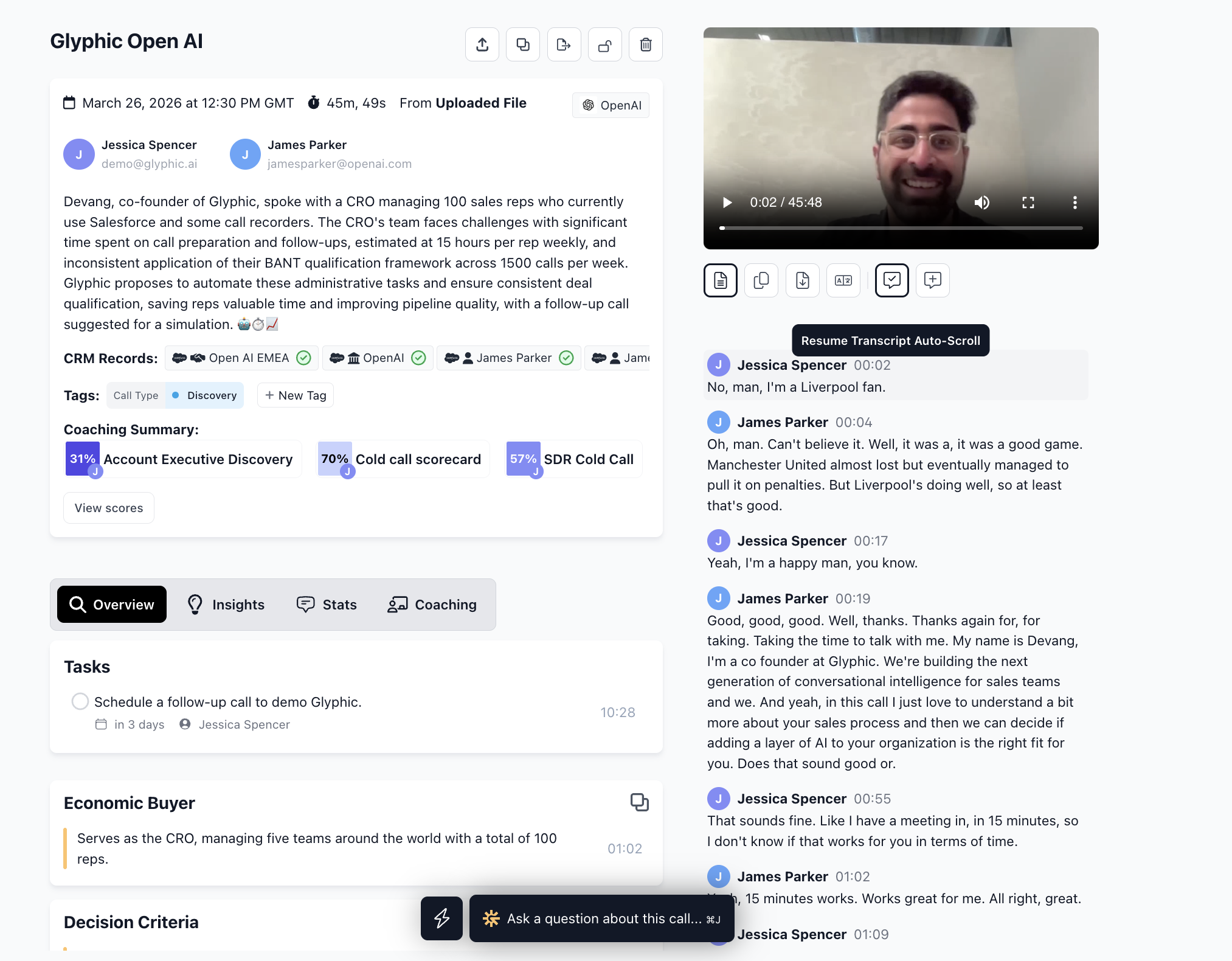
The Call page brings together the recording, transcript, and all AI analysis in one place.
Header
The call header shows the call title (editable), date and duration, source (e.g. Airspeed notetaker, Zoom, Gong), participants, linked CRM records, and any tags applied to the call.
Media player and transcript
The recording plays in the media player on the right. The transcript is synchronised — clicking any line in the transcript jumps the player to that moment, and the transcript highlights in real time as the recording plays. You can leave comments on specific transcript turns by hovering over a line.
Overview tab
The Overview tab shows the AI summary of the call and the tasks extracted from it. Each task is linked to the timestamp where the commitment was made — click the timestamp to jump straight to that moment in the recording.
Insights tab
The Insights tab shows your organisation's custom insights extracted from this call — structured data points like pain points, tech stack mentions, or any other fields your team has configured. Where a CRM sync is set up, you will see the current CRM value alongside what was captured on this call.
Stats tab
The Stats tab shows talk statistics for each participant: talk time, talk-to-listen ratio, and talk speed (words per minute). Useful for reviewing whether the conversation was balanced or for coaching on talk time.
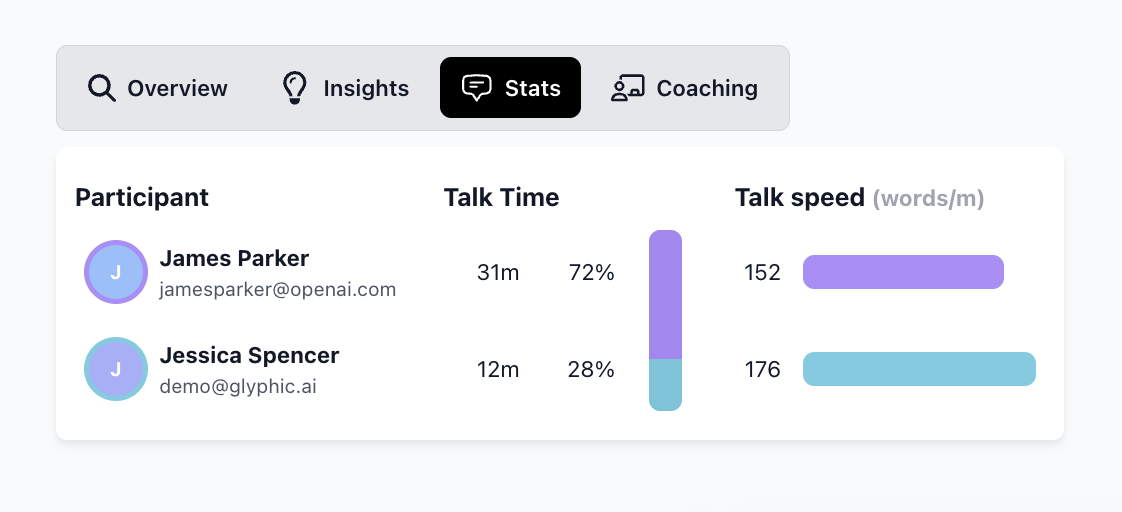
The Stats tab shows talk time and talk speed for each participant on the call.
Coaching tab
The Coaching tab shows scorecard results for the call — each skill is assessed and given a score with a written explanation and evidence from the transcript. See the Post-call coaching article for more detail.
Sharing and privacy
Use the Share button at the top right to get a shareable link to the call — either for colleagues within Airspeed, or as a public link for prospects. You can also mark a call as private to restrict access to the recording and transcript. See the dedicated articles on sharing and privacy for more detail.