The Company Page
Last updated: May 20, 2026
The Company page brings together everything Airspeed has on an account in one place: the AI summary, the activity timeline (calls, emails, prep sheets), contacts, deal data, and Custom Insights. You can reach it by clicking any company name or deal card throughout the app.
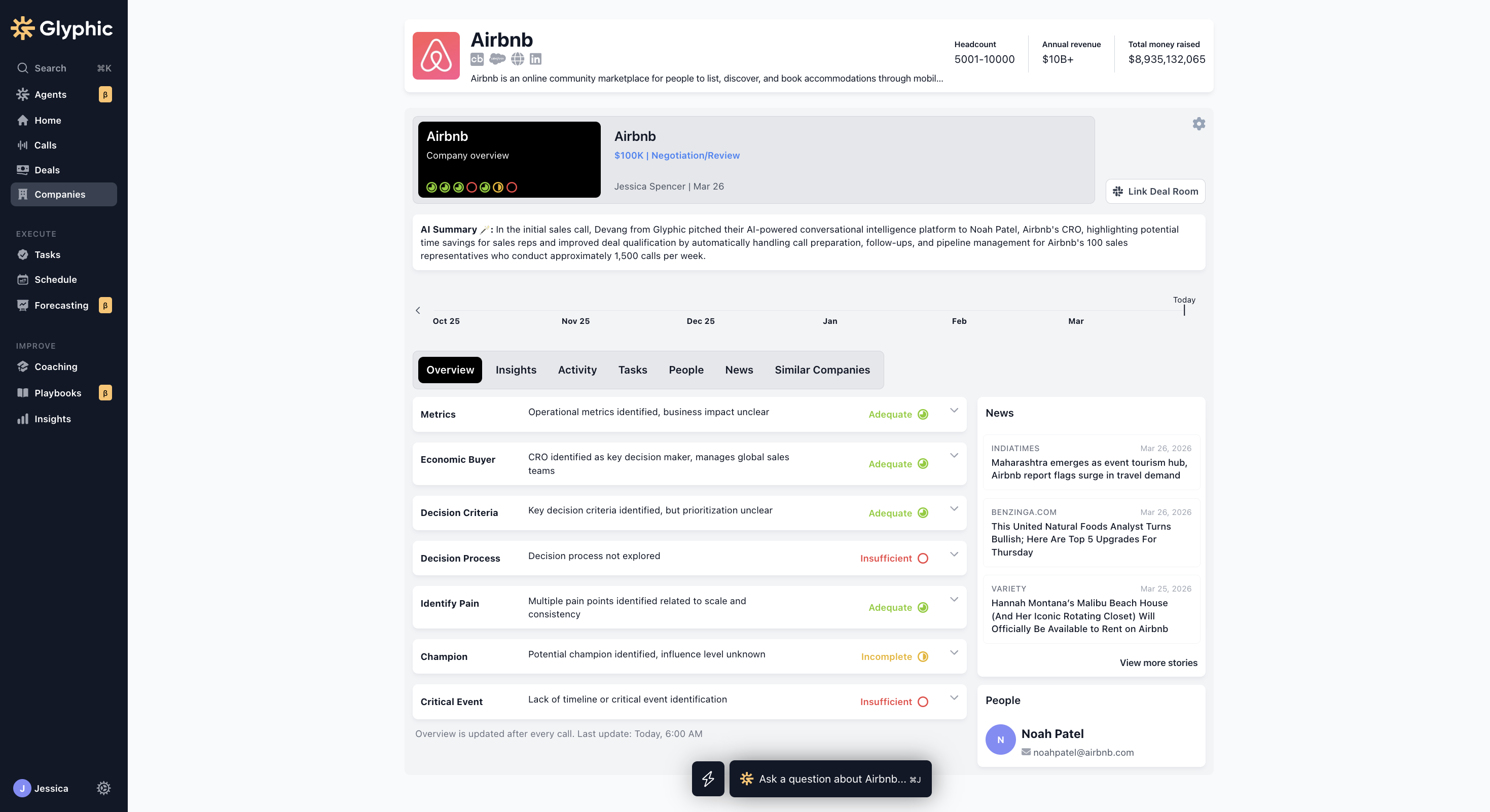
The Company page brings together everything Airspeed has on an account.
Overview
The Overview tab is the default view. It shows an AI-generated summary of the account, updated after every call. The summary is structured into sections — such as decision criteria, business context, and qualification — each with a confidence score. Click any section to expand the full detail and see the evidence Airspeed used.
The right-hand sidebar shows the latest company news and a list of associated contacts. Click Show more to expand either.
Activity
The Activity tab shows a chronological timeline of all calls, emails, and prep sheets associated with this company. Use the period selector to filter by date range. Click any call to open it.
Insights
The Insights tab displays your organization's custom insights for this account — key data points automatically extracted from calls, such as tech stack, pain points, or CRM fields. Where a CRM sync is configured, you will also see the current value in your CRM alongside what Airspeed has captured.
Tasks
The Tasks tab lists all open tasks associated with this company, extracted from call transcripts or created manually. Tasks can be marked complete directly from this tab.
People
The People tab shows a table of contacts associated with this company — name, title, email, location, and links to their CRM record and LinkedIn profile. This tab only appears if Airspeed has contacts on file for the company.
News
The News tab shows recent news articles about the company, sourced from Crunchbase. This is useful for spotting trigger events — funding rounds, leadership changes, product launches — before a call.
Similar Companies
The Similar Companies tab uses AI to surface other companies in your Airspeed data that resemble this one. Each match includes an explanation of why it is similar, suggested discovery questions, and a summary of how your team has engaged with that account. You can provide feedback (thumbs up or down) to help improve the matching over time.
If similar companies have not yet been processed, click the button on the tab to trigger it.
Deals
If your CRM is connected, deal tabs appear alongside the company name at the top of the page. Clicking a deal tab filters all the page content — summary, insights, tasks, activity — to that specific deal. The deal tab shows the deal name, stage, owner, close date, and value.
When a deal is selected, a Comments tab also appears where your team can leave notes and @-mention colleagues.
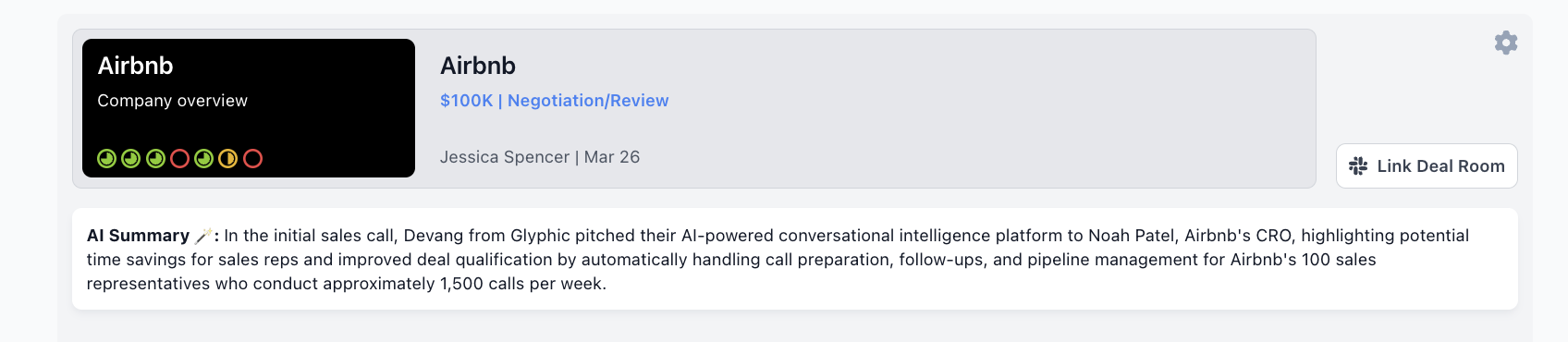
The Overview tab shows Airspeed's AI summary of the account, structured by section with confidence scores.
If you have any questions, reach out to support@glyphic.ai.