Tracked Fields
Last updated: May 20, 2026
Tracked Fields let you select any field from your CRM and have Airspeed snapshot its current value every time a call is processed. Unlike Custom Insights, which Airspeed extracts from the call transcript, Tracked Fields are pulled directly from your CRM — giving you a point-in-time record of what your CRM said about the account, deal, contact, or lead at the moment of each call.
Tracked Fields vs. Custom Insights
Custom Insights — Airspeed reads the call transcript and extracts a value (e.g. competitor mentioned, stated pain point).
Tracked Fields — Airspeed reads your CRM and copies an existing field value onto the call (e.g. deal stage, account tier, ARR, owner).
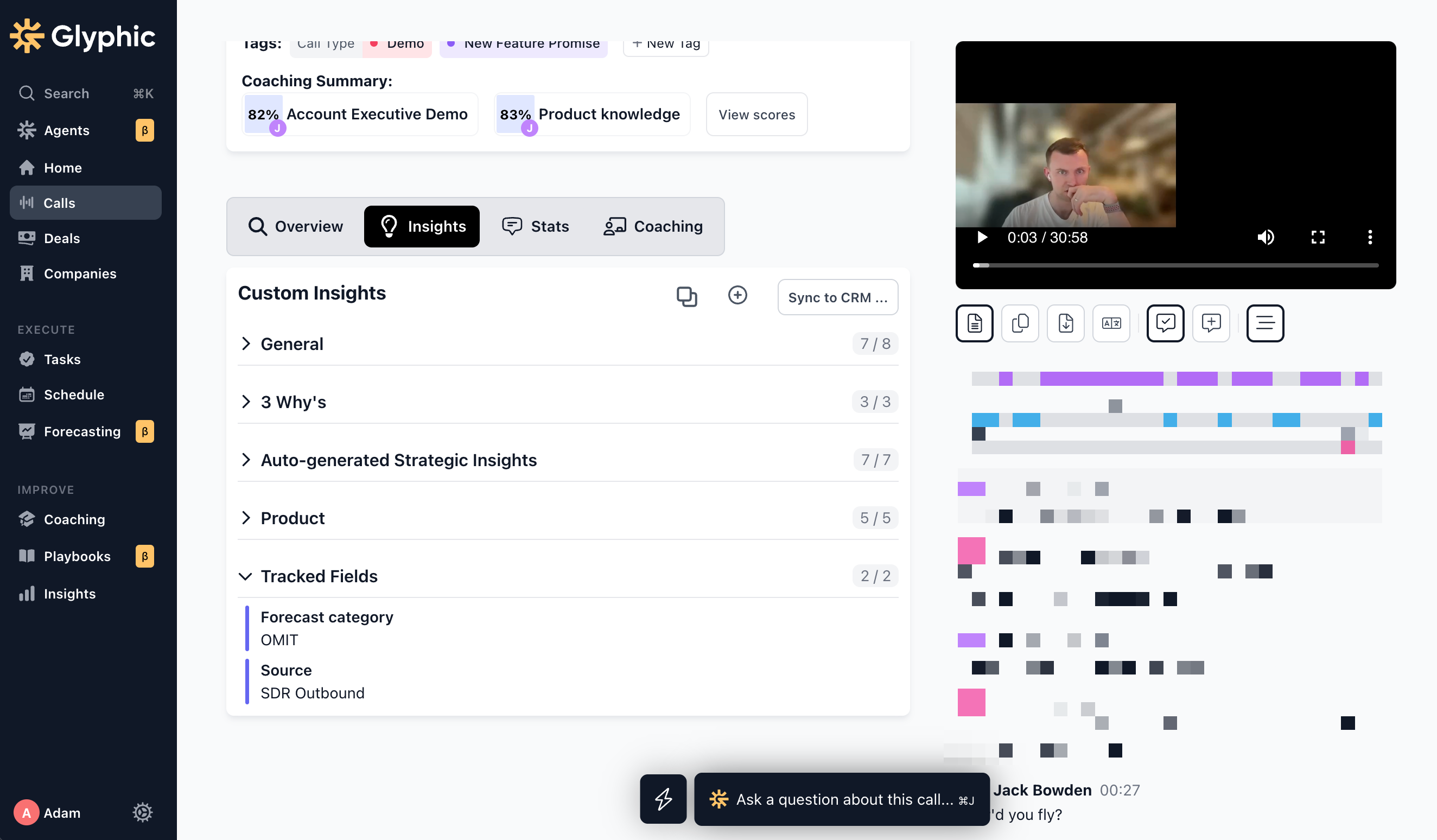
Both show up alongside each other in the Insights tab on the call and company pages, so you can mix CRM data with AI-extracted data in the same place.
What you can do with Tracked Fields
Filter calls — narrow your call list by any tracked CRM value (e.g. only show calls where Deal Stage = "Negotiation" or Account Tier = "Enterprise").
Focus Ask Airspeed responses — Ask Airspeed uses tracked field values as context, so questions like "show me at-risk enterprise deals" can reason over CRM data.
Visualize as Insights — tracked values appear in the Insights tab on each call and on the company page, next to your Custom Insights.
Analyze in Strategic Insights — tracked fields are charted in Strategic Insights just like Custom Insights, so you can break down deal patterns by any tracked value (e.g. win/loss ratio by Lead Source, deal velocity by Industry, pipeline by Account Tier).
Build a historical snapshot — because the value is captured at the time of each call, you can see how a CRM field changed over the lifecycle of a deal.
Where tracked field values appear
Call page > Insights tab — shows the value of each tracked field at the time that call was processed.
Company page > Insights tab — shows the latest values across the account.
Call list filters — tracked fields are available as filter options when narrowing down calls.
Ask Airspeed — tracked field values are included in the context Ask Airspeed uses to answer questions.
Strategic Insights — tracked fields show up alongside Custom Insights as breakdown dimensions, so you can see things like win/loss ratio by tracked value (e.g. by Lead Source or Deal Type).
Setting up Tracked Fields
Tracked Fields are configured by admins. You'll need an active CRM integration (HubSpot or Salesforce) before any fields will be available to track.
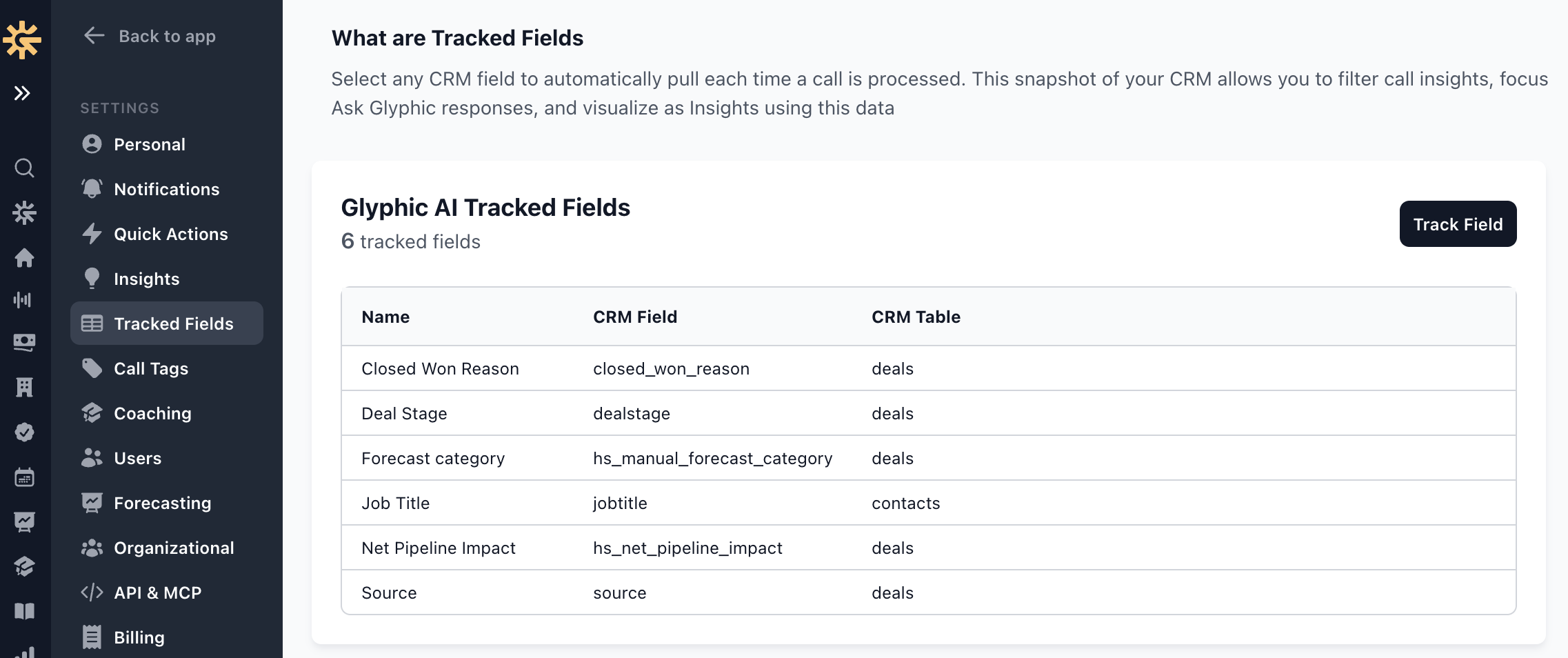
Go to Settings > Tracked Fields.
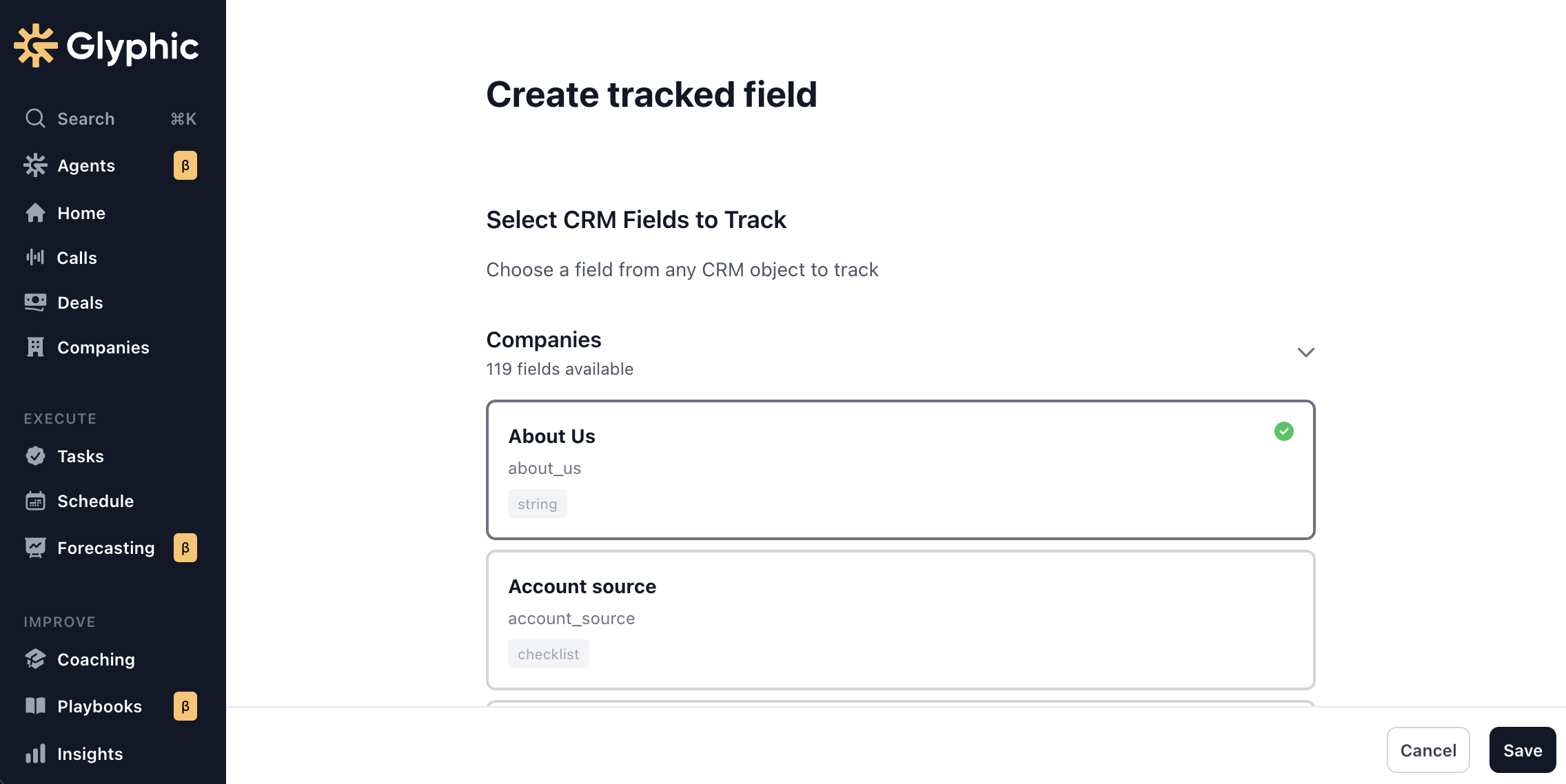
Click Track Field in the top right.
Expand a CRM object (Companies, Deals, Contacts, or Leads) to see the fields available on that object.
Click any field to select it. Click again to deselect. You can select fields across multiple objects in one go.
Click Save to apply your changes.
Once saved, the field will be pulled from your CRM the next time a call is processed. Existing calls are not back-filled.
Choosing what to track
Good candidates for Tracked Fields are CRM values that:
You'd want to filter or segment calls by — e.g. Deal Stage, Deal Owner, Account Tier, Industry, Region, ICP fit.
You'd want Ask Airspeed to reason over — e.g. ARR, Renewal Date, Health Score.
Change over time and where the history matters — e.g. Forecast Category, Stage, Amount.
You don't need to track everything in your CRM — start with the handful of fields your team actually uses to talk about deals.
Permissions
Only users with the Edit Custom Insights permission (typically admins) can add or remove Tracked Fields. All users can see tracked field values on calls and company pages, subject to your normal call visibility rules.
FAQ
Will tracking a field write anything back to my CRM?
No. Tracked Fields are read-only — Airspeed only pulls values from your CRM. To push values back, use Custom Insights with CRM field mapping.
What if the value in our CRM changes after the call?
The value captured on a call reflects what was in the CRM at the time that call was processed. Later calls will pick up the new value, so over time you'll see a history of how the field changed.
Why don't I see a value for a tracked field on some calls?
Airspeed can only pull a tracked field if it can match the call to the corresponding CRM record (Company, Deal, Contact, or Lead). If a call isn't linked to a record on that object, fields from that object won't appear.
Can I track the same field on multiple objects?
Yes. Fields are stored per CRM object, so a field name that exists on both Deals and Companies (for example) can be tracked independently on each.
If you'd like help deciding which CRM fields to track, reach out to support@glyphic.ai.