Tasks
Last updated: May 20, 2026
Tasks in Airspeed are action items linked to your calls and deals. They are created automatically from call transcripts when Airspeed detects a commitment or next step, and can also be created manually from any call or company page.
The Tasks page
The Tasks page (Tasks in the left navigation) shows all tasks assigned to you, organised into five tabs:
Today — tasks due today, with a progress indicator showing how many you have completed.
Overdue — tasks past their due date. Use the bulk actions to assign all to today or mark all as complete.
Upcoming — tasks due in the next 7+ days, grouped by date.
Unscheduled — tasks with no due date set.
Completed — tasks you have marked as done.
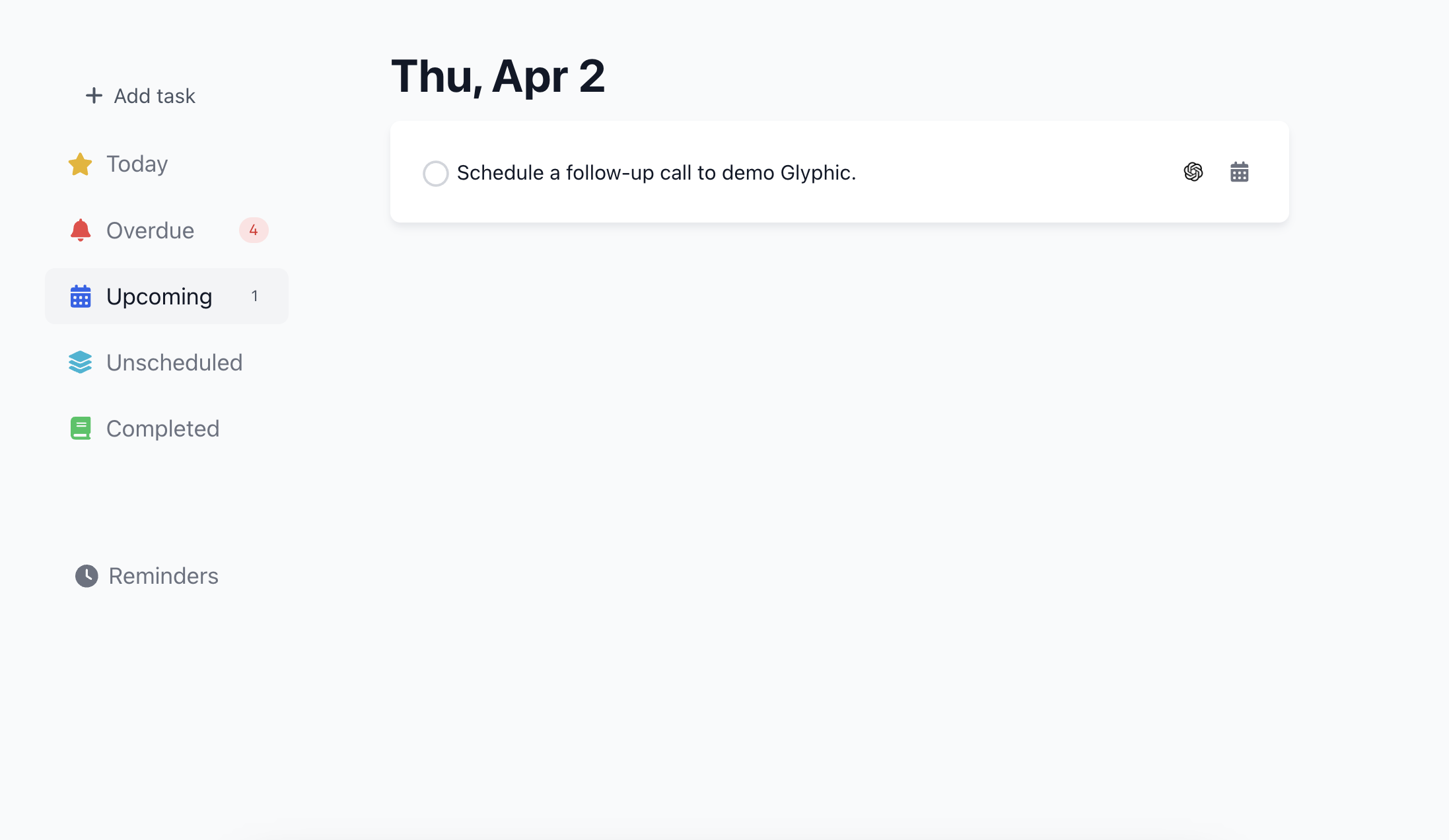
The Tasks page organises your action items by due date.
Creating a task
To create a task manually, click the Create Task button on the Tasks page, or use the Tasks tab on any call or company page. You can set a title, due date, and assignee.
Completing tasks
Tick the checkbox next to any task to mark it as complete. You can do this from the Tasks page, the Home page Tasks widget, or directly from a call or company page.
Task reminders
You can configure task reminder notifications from Settings > Notifications. Reminders can be set to notify you at a chosen time before a task is due.
Automatically generated tasks
After every call, Airspeed scans the transcript for commitments and next steps and creates tasks automatically. These appear on the Overview tab of the call page, and are linked to the relevant call so you can jump back to the moment in the transcript where the commitment was made.