The Home Page
Last updated: May 20, 2026
The Home page is the first page you land on in Airspeed. It pulls together the things most relevant to you right now — your upcoming calls, your open tasks, your pipeline, and a snapshot of your recent activity — so you can get oriented quickly without digging through the rest of the app.
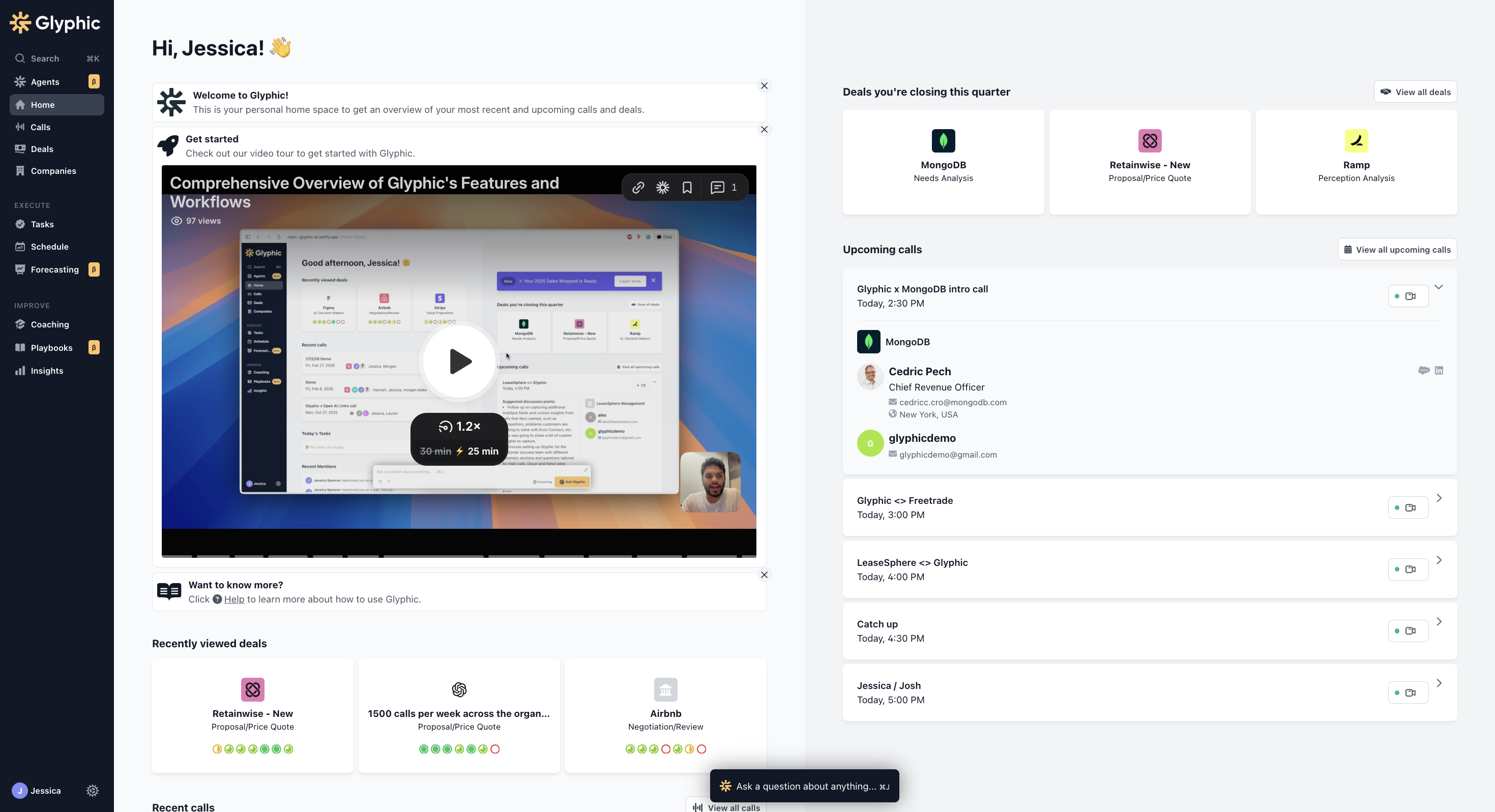
The Airspeed Home page gives you a personalized view of your calls, deals, and tasks.
Upcoming Calls
The Upcoming Calls section shows your next external meetings, pulled from your connected calendar. For each call, Airspeed generates a prep sheet in advance — suggested discussion points, participant details, and company context — so you can walk in prepared.
When a call is about to start (within 15 minutes), two buttons appear on the card:
Join meeting — opens the meeting link directly.
Send copilot — sends the Airspeed AI notetaker to the meeting to capture the transcript and generate a summary.
Click anywhere on a call card to expand or collapse the prep details. The first upcoming call is expanded by default.
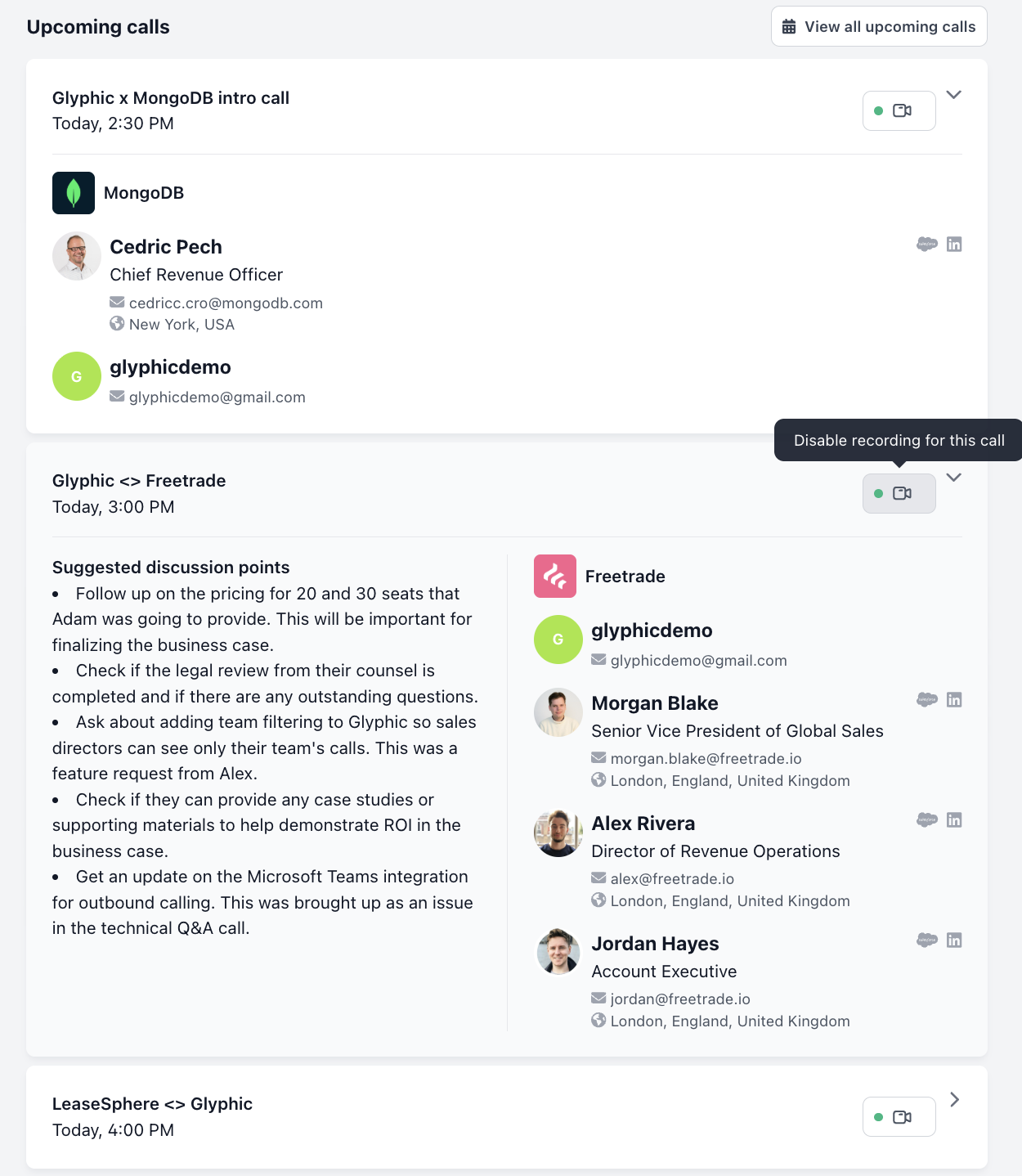
Expand an upcoming call to see your prep sheet. Join the meeting or send a copilot directly from here.
Important note: Upcoming Calls requires a connected calendar (Google or Outlook). If you have not connected your calendar yet, you will see a prompt in this section — go to Settings > Personal to set it up.
Deals Closing This Quarter
The Deals Closing This Quarter section shows the top deals you own that are due to close in the current quarter, ranked by deal value. Each card links directly to the company page for that deal.
This section requires a connected CRM (HubSpot or Salesforce). If your CRM is not yet connected, go to Settings > Organizational to set up the integration.
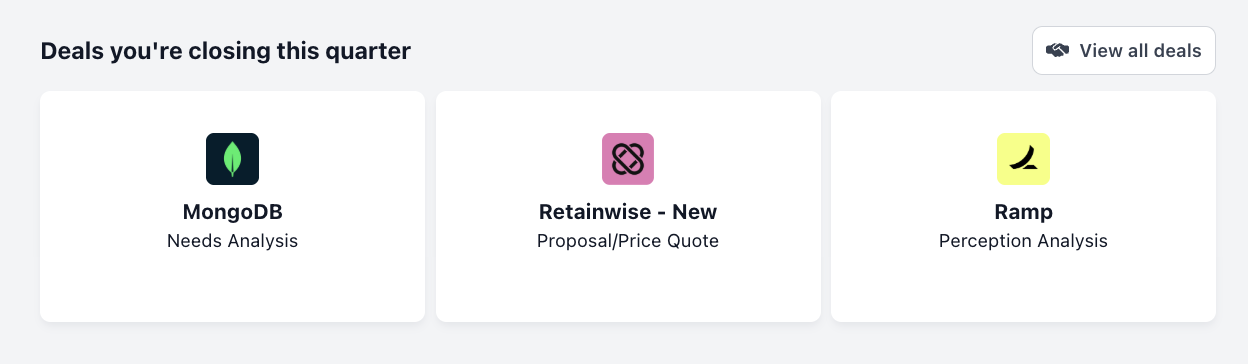
Deals Closing This Quarter shows your highest-value deals due to close this quarter.
Recent Calls
The Recent Calls section shows the last three calls recorded or processed by Airspeed for your account. Click any call to open the full call page with transcript, summary, and insights. Use View all calls to go to your complete call history.
Today's Tasks
The Today's Tasks section shows any tasks assigned to you that are due today. You can mark tasks as complete directly from the Home page. Tasks are created automatically from call transcripts (when action items are detected) or manually from any call or deal page.
Recent Mentions
If a colleague tags you in a comment on a call or deal, it will appear in the Recent Mentions section. Clicking a mention takes you directly to the relevant call or deal with the comment in view.
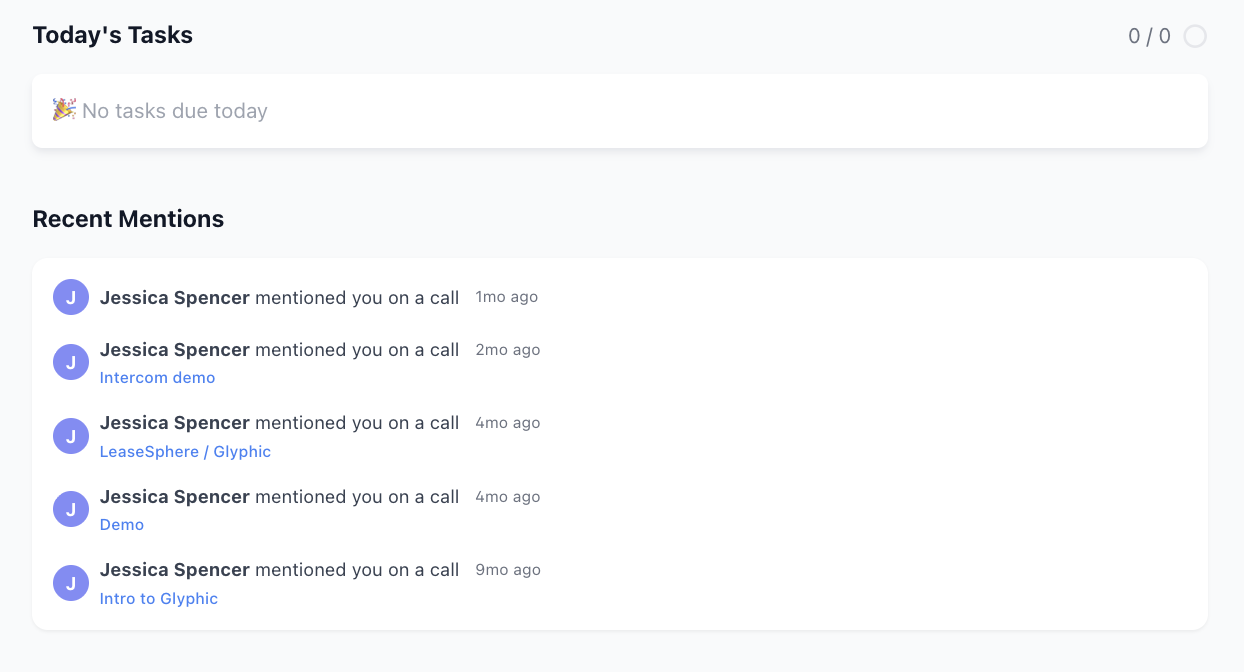
Today's Tasks and Recent Mentions keep your to-do list and team activity in one place.
My Activity
At the bottom of the left column, My Activity shows a summary of your call stats for the past week compared to the previous week:
Number of calls
Total call time
Talk speed — words per minute
Talk:Listen ratio — the proportion of the call you spent speaking
Week-on-week changes are highlighted in green (up) or red (down). Click View all stats to go to your full activity report.
This section only appears if you have calls recorded in the current week.
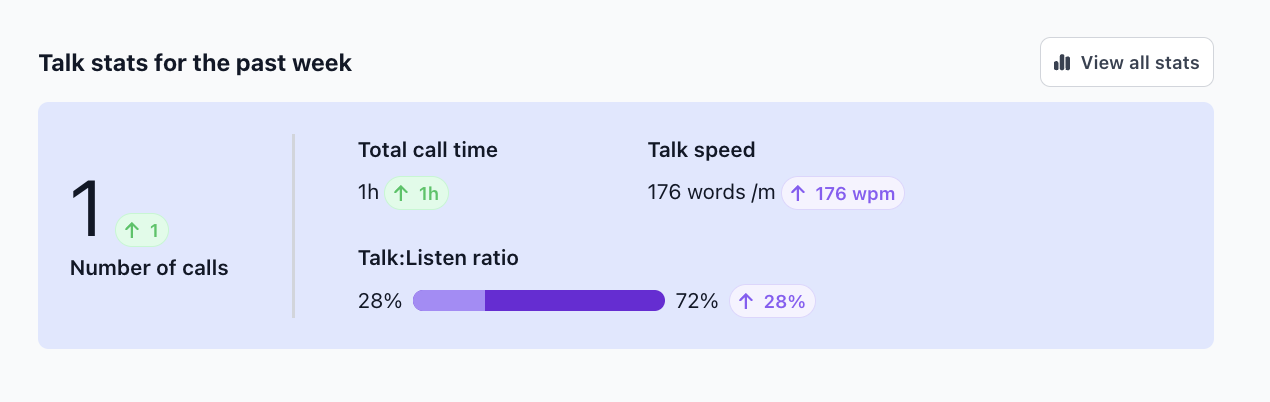
My Activity shows your weekly call stats at a glance.
Getting the Most from the Home Page
Some sections on the Home page require integrations to be enabled:
Upcoming Calls — connect your calendar at Settings > Personal.
Deals Closing This Quarter — connect HubSpot or Salesforce at Settings > Organizational.
Recent Calls and My Activity — these populate once your first calls are processed by Airspeed.
If you have any questions, reach out to support@glyphic.ai.