How can I make a call private?
Last updated: May 20, 2026
When you make a call private:
The call video, transcript, and analysis will be visible only to the attendees; even administrators cannot access it unless they were participants.
It will not appear in search results.
Its data will not be available on linked company and deal pages on Airspeed.
The call's title, time and participants will still be visible to other users
If you wish to share a private call with someone who was not an attendee, you can generate an external share link from the call page and provide it to them.
To make a call private:
This can be done either before or after the call has taken place
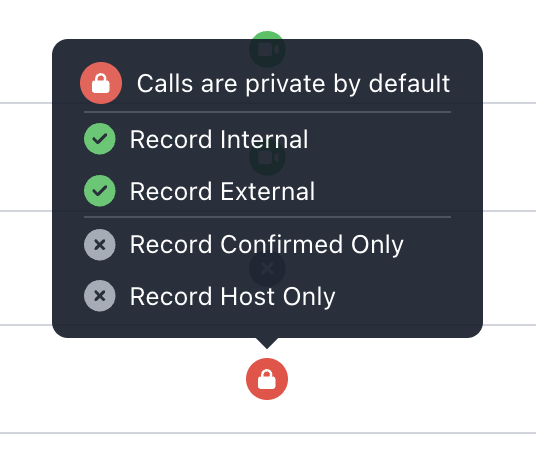
Before the call starts: Go to Schedule and click on the lock button.
If the call is part of a recurring appointment, all future occurrences of the meeting will be made private.
After the call has been processed: Go to the call page and click “Make private” in the top-right menu:

Set all your calls to private by default (Admin only)
If you’re an admin, you can automatically make your calls private by default, instead of setting each one individually.
To enable this:
Go to Personal Settings.
Turn on Default my calls to private under Call Privacy.
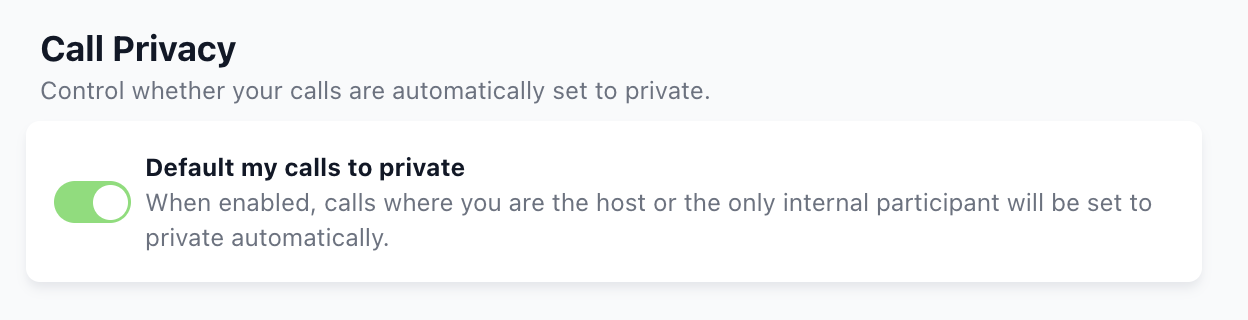
When enabled, a call will automatically be set to private if:
You are the host, or
You are the only internal participant, or
All internal participants have also enabled this setting.
Before enabling this setting
We recommend keeping calls public when possible so your team can benefit from shared conversational intelligence and insights.
How to see who has this setting enabled
You can see which users in your organization have enabled this setting in the User Management table.
Their calendar integration will display a red lock icon, indicating that their calls are private by default.