Glyphic on the Go, Recording app
Last updated: April 19, 2026
The Glyphic mobile recording app lets you capture and analyze in-person meetings the same way you would virtual calls. Use it for customer meetings that happen face to face — site visits, dinners, conferences.
Using the app
1. Install the app
Download and install Glyphic on your mobile device (iOS or Android, see below for instructions).
2. Open the app
Navigate to the Glyphic app on your phone.
3. Start recording
You’ll see your schedule, along with a red Record button in the bottom right. Tap it to begin recording.

4. Position your device
Place your phone where it can clearly capture all participants in the meeting.

5. Stop recording
When the meeting ends, stop the recording. The file will automatically upload to Glyphic.
6. View recordings
Go to the Recordings tab (bottom right) to see all past recordings and their upload status.

7. Review on desktop
Open Glyphic on your desktop to access the recording in your call page.
8. Add participants
You can add participant names by clicking the pencil icon next to the participant list. Saving this will also trigger any automated CRM syncing.
Download instructions for iOS (Apple)
Open Safari on your mobile device
Go to: https://app.glyphic.ai
Tap the Share icon (bottom of the screen)

Scroll down and select Add to Home Screen
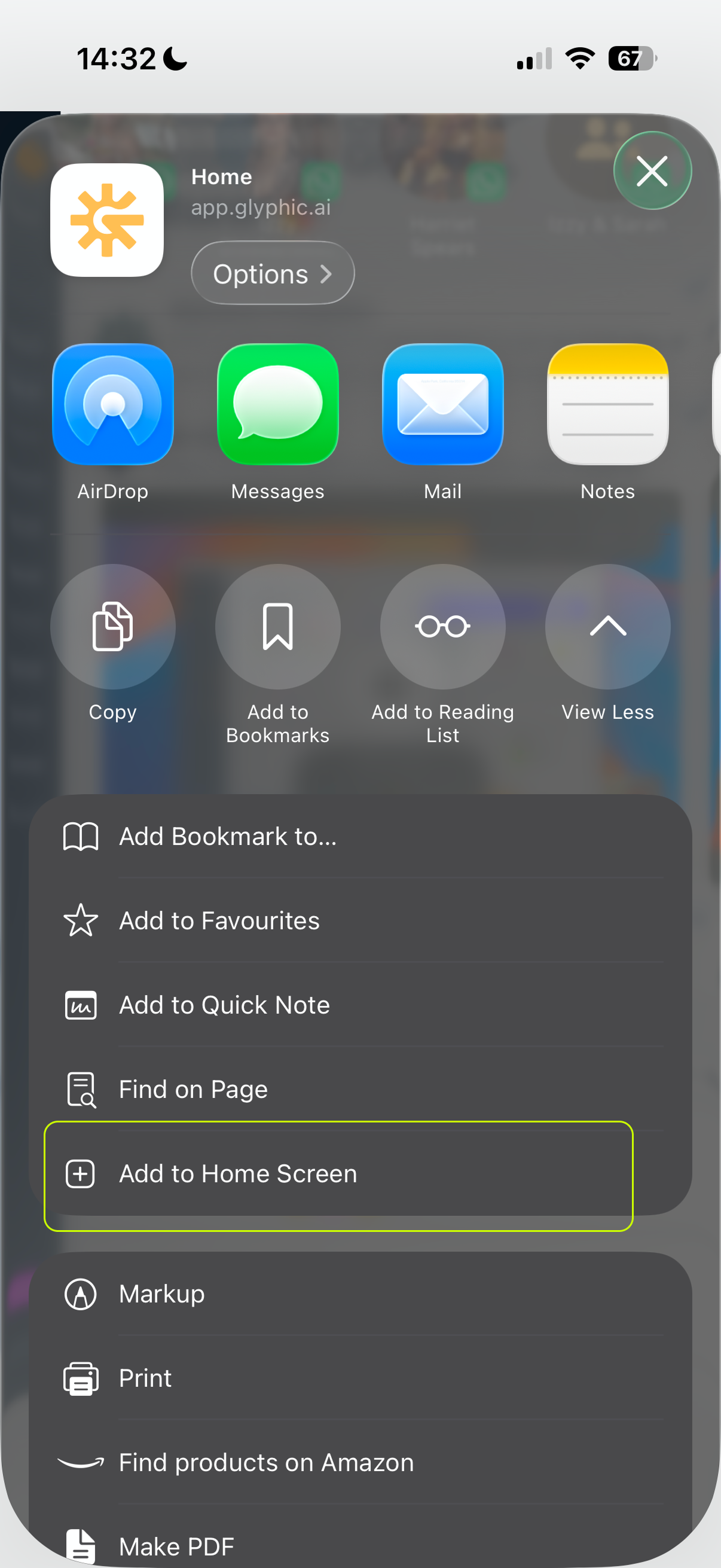
5. Tap Add
Download instructions for Android (Samsung, Google, Nothing, etc)
Open Chrome on your mobile device
Go to: https://app.glyphic.ai
Tap the three dots menu (top right corner of the browser)
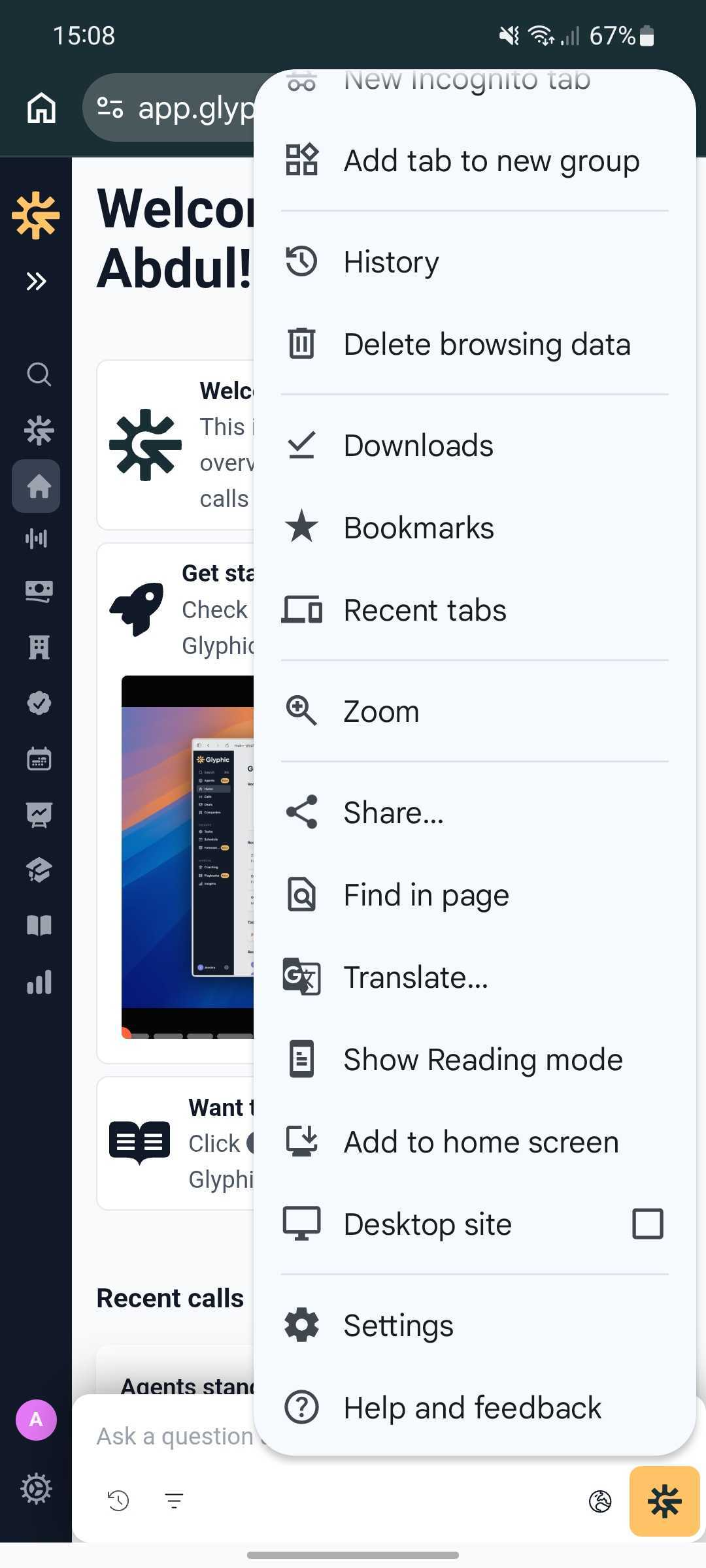
Select Add to Home screen (or Install app, depending on your device)
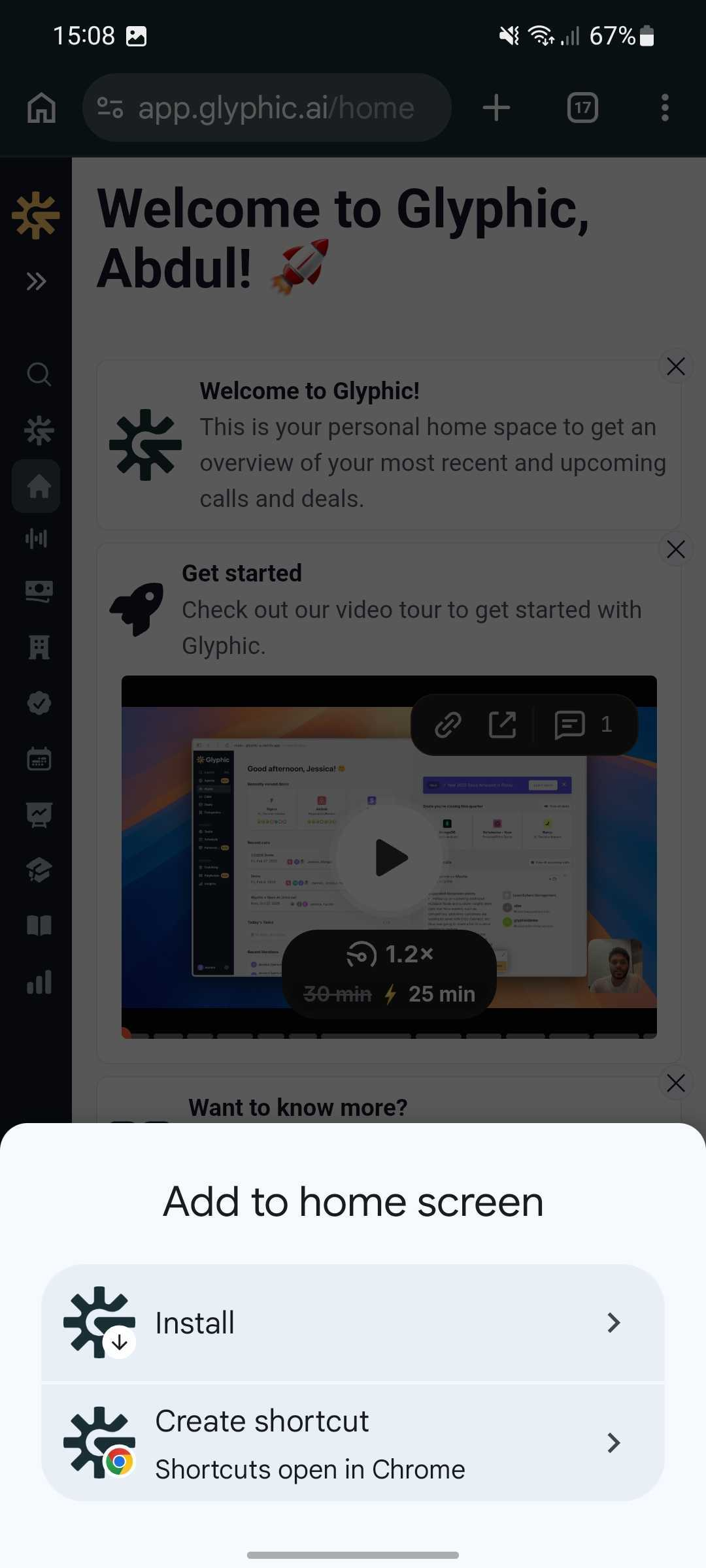
Tap Add or Install